Getting started
Warden is a desktop crypto monitoring workspace for Windows. It reads publicly available market data from Bybit, Binance, Gate.io, OKX and Hyperliquid, and presents it through a set of purpose-built tools that each open in their own resizable window.
Install
- Download the installer — from the Download button on cryptowarden.xyz, or directly from the latest release.
- Run the
.exe. - Warden is Windows-only. There is no macOS or Linux build.
The SmartScreen warning
On first download and run, Windows Defender SmartScreen may warn that the app is unrecognized. This is expected and is not a virus detection.
SmartScreen flags any new application that has not yet built up a reputation with Microsoft — it simply means not enough people have downloaded the file yet for it to be trusted automatically. Every new indie app goes through this, and the warning disappears on its own as the download count grows.
To get past it:
- Click More info on the SmartScreen popup.
- Click Run anyway.
- This only happens once — later launches won't show the warning.
First run
On launch Warden checks for updates before anything else, then asks you to sign in.
Account
Warden uses an email and password account. Signing up sends a 6-digit verification code to your email; enter it to confirm the address, then sign in. You'll also need to accept the Terms of Service during sign-up.
Access is currently free while Warden is in beta. Once signed in, the Home tab shows your subscription status as Beta Test, along with your email and the installed app version. Your email address is masked by default — click the eye icon next to it to reveal it.
Warden never touches your exchange accounts
Every monitoring tool reads public market data only. Warden does not ask for exchange API keys, does not connect to your exchange account, and cannot place trades on any of the exchanges it monitors.
The one exception is the experimental Terminal, a separate opt-in tool that connects to Hyperliquid, Binance or Bybit with credentials you provide. It does nothing unless you deliberately set it up.
The workspace
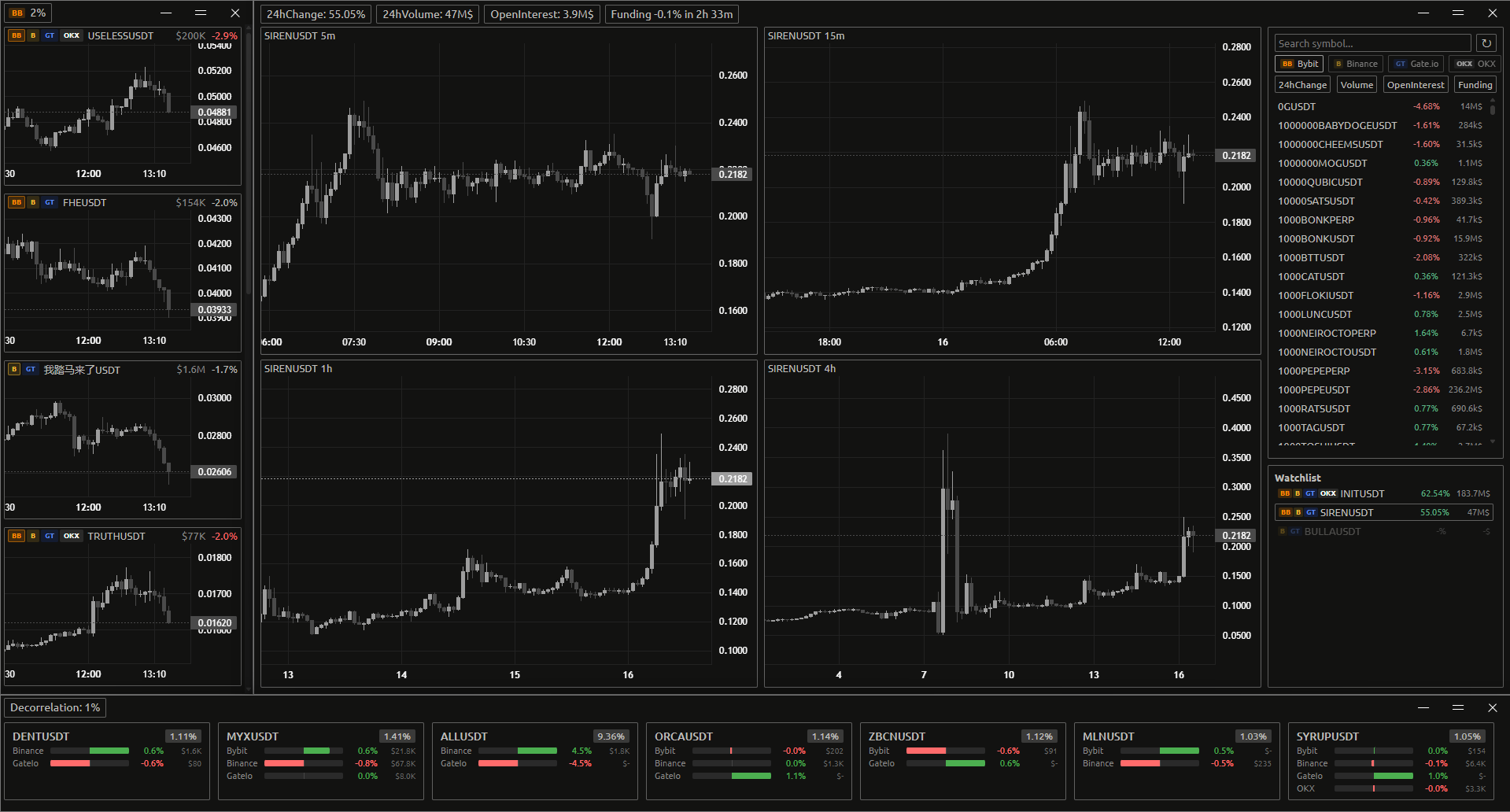
Warden is built around one small main window plus one window per tool.
The main window's left edge is a vertical tab bar:
| Tab | What it holds |
|---|---|
| Home | Account, language, accent color, chart and drawing settings |
| Knives | Knives settings + its Open Window button |
| Alerts | Alerts settings + its Open Window button |
| Analyzer | Analyzer notices + its Open Window button |
| Monitor | Monitor settings + its Open Window button |
| Terminal | Terminal settings + its Open Window button |
Every tool works the same way: its settings live in the main window, and the tool itself opens as a separate window. Click Open Window in a tool's tab to launch it. While that window is open the button reads Already Open and is inert — each tool is limited to one window at a time.
Because each tool is an independent window, you can size and position them freely to build the layout you want, and leave the main window tucked away.
Changes to settings apply live — the open tool window picks them up without a restart. Settings are written to disk automatically as you change them.
Titlebar
Tool windows use Warden's own titlebar rather than the Windows one. It shows WARDEN and the active tool name on the left, and minimize / maximize / close on the right. Drag anywhere on the empty part of the bar to move the window.
Language
Warden's interface is available in English and Українська. Switch it in the Home tab, at the top right next to the WARDEN heading. This setting is independent of the language you're reading this manual in.
Accent color
Also in the Home tab, the row of eight color swatches sets the app-wide accent color: Amber, Green, Blue, Purple, Red, Teal, Pink and White. It applies across every tool window.
This is separate from candle and metric colors — see Charts & drawing for those.
Updates
Warden updates itself. On every launch it checks for a new version before showing the sign-in screen; if one exists it downloads, installs and restarts automatically. You'll see Checking for updates... and then Updating to v<version>... on the loading screen while this happens.
There is nothing to do manually. The installed version is shown in the Home tab as App Version.
Getting help
Bug reports and feature requests go to the Telegram group — it's the fastest way to get a direct response.