Charts & drawing
These settings live in the Home tab of the main window, under the Charts section. They are global: every chart in every tool — Knives, Alerts, Analyzer, Monitor — uses them.
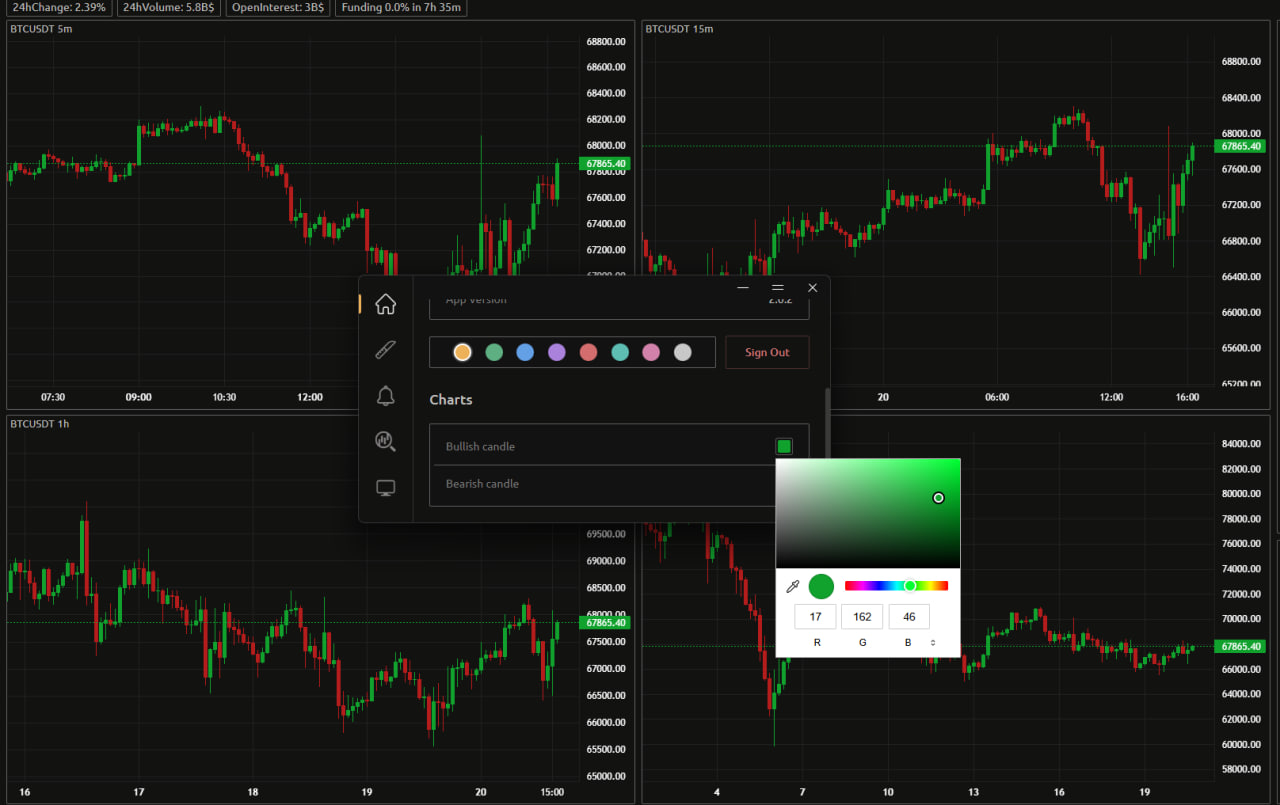
Candle colors
| Setting | What it does | Default |
|---|---|---|
| Bullish candle | Color of candles that closed up | #9D9D9D |
| Bearish candle | Color of candles that closed down | #4A4A4A |
Both open a color picker. The change applies to every chart in the app at once, so a candle scheme you pick here follows you from a Knives thumbnail to a fullscreen Analyzer panel.
The defaults are deliberately neutral greys rather than green/red — the intent is that color in the interface means "something crossed a threshold" rather than "price went up". If you'd rather have conventional green/red candles, set them here.
Drawing color
| Setting | What it does | Default |
|---|---|---|
| Drawing color | Color used by all five drawing tools | Falls back to your accent color |
One color covers every drawing tool. If you have never changed it, it follows the accent color you picked in the Home tab; once you set it explicitly it stops tracking the accent and stays where you put it.
Drawing tools
Charts in the Analyzer and in fullscreen chart views support five drawing tools. Each is bound to a single key, and each binding is editable here.
| Tool | What it draws | Default key |
|---|---|---|
| Horizontal ray key | A horizontal ray at a chosen price | H |
| Trend line key | A two-point trend line | T |
| Rectangle key | A rectangle / box region | B |
| Pencil key | Freehand drawing | P |
| Dissolving pencil key | Freehand drawing that fades away on its own | F |
To rebind one, click the key button next to it — it switches to Press a key… — then press the key you want. Press Esc to cancel without changing it.
A few rules the capture enforces:
- Only letters and digits are accepted for the five drawing tools.
- Modifier combinations are rejected — pressing Ctrl+H does nothing, the binding must be a bare key.
- Bindings must be unique. If you pick a key that is already assigned to another tool, the capture is dismissed and nothing changes.
Bindings are stored as physical key positions rather than characters, so they keep working if you switch keyboard layout or type in another language.
Drawings are saved per symbol and per exchange, so switching a chart from Bybit to Binance for the same ticker shows a different set of drawings.
Magnet
Magnet snaps the point you are drawing to the nearest candle high or low, so rays and trend lines land exactly on a wick instead of near it.
| Setting | What it does | Default |
|---|---|---|
| Magnet mode | Hold or Toggle | Hold |
| Magnet key | Key that activates it | Ctrl (left) |
The two modes:
- Hold — magnet is active only while the key is held down. Momentary.
- Toggle — pressing the key switches magnet on, pressing it again switches it off. The on/off state persists across restarts.
Unlike the drawing tools, the magnet key may be a bare modifier — Ctrl, Shift, Alt or Meta — as well as a letter or digit. The default is left Ctrl. The same no-duplicates rule applies against the five drawing keys.
What is not here
Colors that indicate a metric crossing a threshold are configured per tool, not globally, because the thresholds themselves are per tool:
- Monitor's NATR and % change level colors, outlines and background fills → Monitor → Metric colors
- Terminal's ladder, depth-bar and position colors → Terminal → Appearance